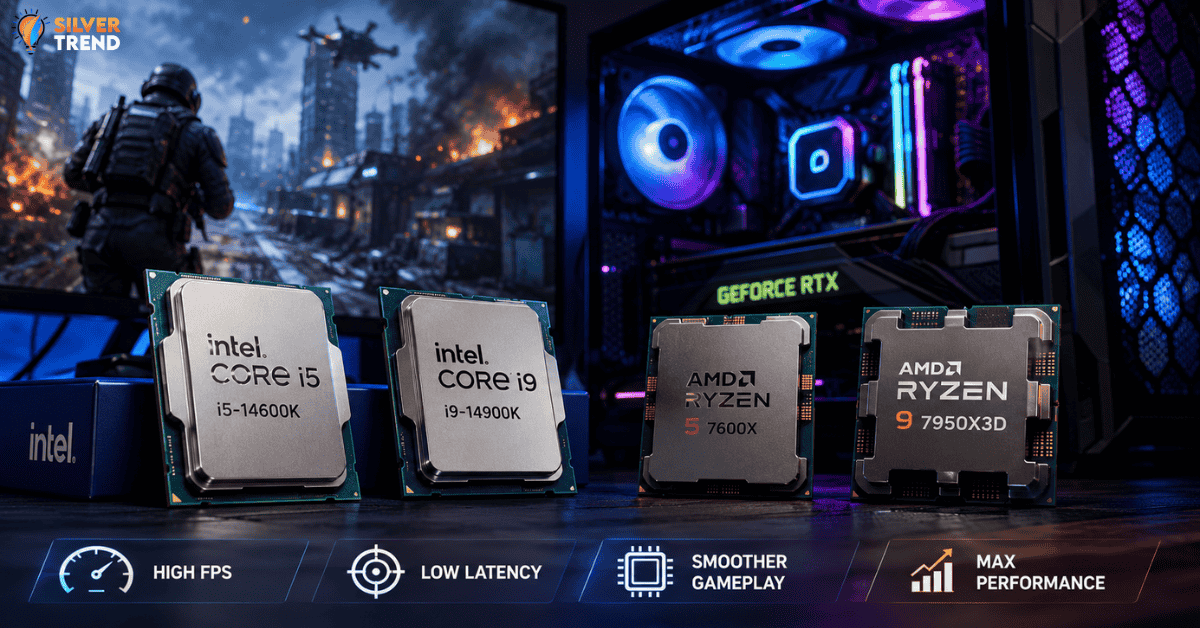
Picture this. You just built a brand-new gaming PC. You have a great GPU. Your RAM is fast. But in the middle of a big fight in your favorite game, everything stutters. Frames drop. You lose. The culprit? A weak CPU.
The best CPU for gaming is not just about clock speed or core count. It is about how well the processor communicates with your GPU, handles game logic, and renders frames to your screen without bottlenecks.
Let us break it down in a simple, honest way.
Why the CPU Matters More Than People Think
Most gamers focus on the GPU. That makes sense. But the CPU is the brain. It handles physics, AI behavior, game scripts, and all the background tasks running while you play.
If your CPU is slow, your GPU sits there waiting. Even a powerful RTX 4090 will underperform if paired with a weak processor. This is called a CPU bottleneck. It is more common than most people admit.
The best CPU for gaming solves this problem. It keeps your GPU fed with data so it can render frames as fast as possible.
Here is something most articles skip: gaming performance is heavily tied to single-core speed, not just total core count. Most games still rely on one or two cores doing most of the heavy lifting. So a CPU with fast single-core performance will always feel better in games than one with many slow cores.
The Real Contenders in 2026
Right now, two companies make the best gaming CPUs: Intel and AMD. Each has its strengths.
Intel Core i5-14600K is a smart choice for most gamers. It has fast single-core speed. It handles modern games without breaking a sweat. The price is reasonable. For mid-range builds, this chip punches above its weight.
Intel Core i9-14900K is for serious gamers and streamers. It runs hot and needs good cooling. But raw gaming performance is near the top. If you want the best CPU for gaming and you stream at the same time, this one delivers.
AMD Ryzen 5 7600X is a strong AMD option. It is efficient, fast in games, and runs cool. If you are building on AM5 for long-term upgradability, this is a great starting point.
AMD Ryzen 9 7950X3D is special. AMD’s 3D V-Cache technology stacks extra cache directly on the chip. Games that need large cache sizes see massive gains. In some games, this CPU beats everything else. It is the best CPU for gaming if you want AMD’s top-tier performance.

What 3D V-Cache Actually Does (And Why It Matters)
This is worth explaining because not many people fully understand it.
Most game data lives in your RAM. The CPU grabs this data, processes it, and sends it to the GPU. But RAM access is slow. Cache memory on the chip is much faster.
3D V-Cache adds more L3 cache to the CPU die by stacking it on top of the CPU die. This means game data stays closer to the processor. The CPU grabs it faster. Frame times become more stable. Games feel smoother even if the average FPS does not change dramatically.
For open-world, strategy, and simulation titles, 3D V-Cache makes a real difference. For simple shooters, a standard fast CPU is usually enough.
Matching the Best CPU for Gaming to Your Setup
Not every gamer needs the same chip. Here is a quick way to think about it:
- Budget build (under $200 GPU): Ryzen 5 7600X or Core i5-13400F. Spending more on a CPU here is wasteful.
- Mid-range build ($300 to $500 GPU): Core i5-14600K or Ryzen 5 7600X. Great balance for most games.
- High-end build ($600+ GPU): Core i9-14900K or Ryzen 9 7950X3D. These CPUs keep up with the best GPUs on the market.
- Future-proof build: Go AM5. AMD’s socket supports future chips. You will not need to change motherboards as often as Intel users do.
One Thing Nobody Talks About: RAM Speed Matters Too
Even the best CPU for gaming will hold back if your RAM is too slow. AMD Ryzen CPUs in particular love fast RAM. Pairing a Ryzen chip with DDR5 memory running at 6000 MHz can noticeably improve frame rates compared to slower DDR4.
Intel CPUs are less sensitive to RAM speed but still benefit from faster memory in certain games. Do not skip this when building.
Keep It Balanced
The single biggest mistake gamers make is spending too much on one part. A great CPU paired with a weak GPU is just as bad as a weak CPU paired with a great GPU. The best gaming PC is a balanced one.
If your budget allows for a solid GPU like an RTX 4070, match it with a Core i5-14600K or Ryzen 5 7600X. That balance will give you better real-world performance than going overboard on just the best CPU for gaming while cutting corners elsewhere.
Choose smart. Game better.