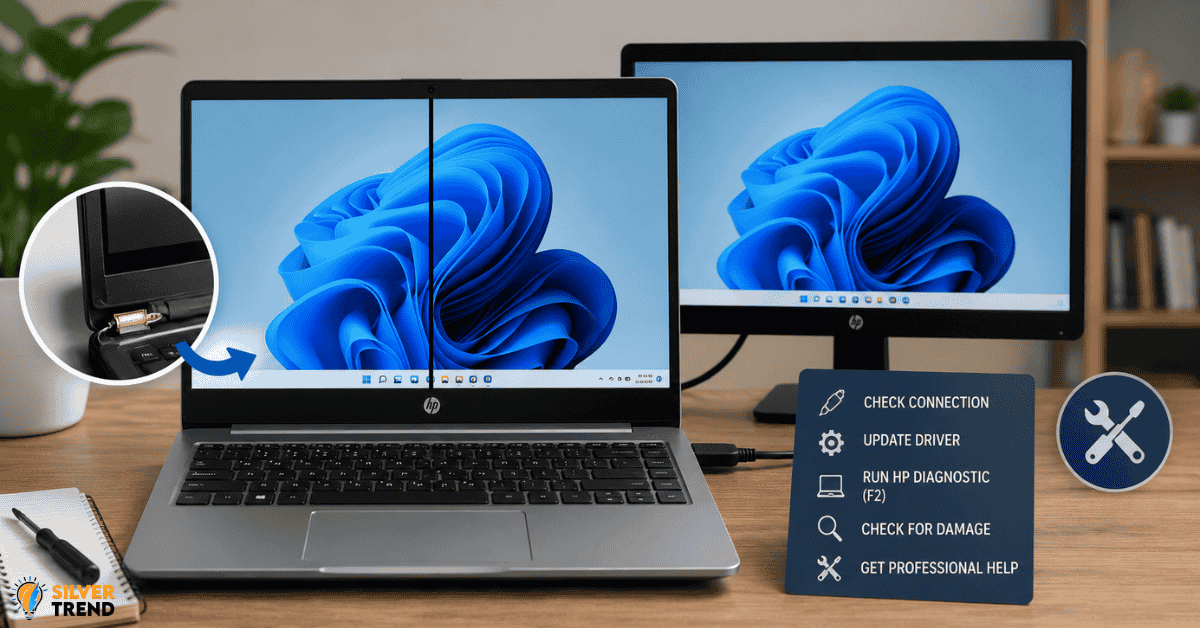
You open your HP laptop one morning, and there it is. A thin black line running straight down your screen. It was not there yesterday. Now it sits right in the middle of your display, and it is all you can see.
This is one of the most common screen problems HP users face. The good news is that not every black line on laptop screen HP means your device is finished. Many cases can be fixed at home without spending a single rupee at a repair shop.
Let us walk through what causes this and how you can handle it step by step.
Why a Black Line Appears on Your HP Laptop Screen
Most people assume the worst when they see this line. But the cause is often simpler than you think.
The black line on laptop screen HP can happen for a few different reasons:
- Loose or damaged display cable: The cable that connects your screen to the motherboard can get pinched over time. Every time you open and close the lid, that cable flexes. After years of use, it can wear out or come slightly loose.
- Physical pressure or impact: If your bag is too packed or if someone presses hard on the lid, the screen panel inside can crack. Even a tiny crack can show up as a vertical or horizontal black line.
- Driver issue: Sometimes the graphics driver gets corrupted. This can create visual glitches, including lines on the screen.
- Dead pixels in a row: When a line of pixels stops working together, it looks like one solid black stripe across the display.
How to Tell If It Is Hardware or Software
This is the most important step. Before you do anything, you need to know what kind of problem you are dealing with.
Here is a simple test. Connect your HP laptop to an external monitor using an HDMI or USB-C cable. If the black line on laptop screen HP does not appear on the external monitor, the problem is with your laptop display itself, not the graphics card or software.
If the line shows up on both screens, the issue is likely a software or driver problem.
For a software fix:
- Go to Device Manager on your HP laptop
- Find Display Adapters
- Right-click your graphics driver
- Select “Update Driver.”
- Restart your laptop after the update
This takes less than five minutes and sometimes removes the line completely.

Physical Fixes You Can Try at Home
If the external monitor test showed the problem is in the screen itself, try these steps before visiting a repair shop.
Step 1: Gently press around the edges of the screen. Sometimes a loose connection inside the display bezel causes the black line on laptop screen HP. Press softly around the corners and sides of the screen while it is on. If the line flickers or disappears, the cable inside is loose.
Step 2: Open and close the lid slowly. Watch what happens to the line as you change the screen angle. If it gets worse or better at a particular angle, the display cable is likely the cause.
Step 3: Check for physical damage. Look at your screen from an angle in good light. If you see a faint crack or dark spot behind the glass, the panel is physically damaged.
When to Get Professional Help
Some problems with the black line on laptop screen HP cannot be fixed at home. If you see these signs, take your laptop to a certified HP service center:
- The line keeps spreading, or new lines are appearing
- The line appeared right after a drop or impact
- Part of your screen has gone completely dark
- The line is very thick and covers a large portion of your display
HP service centers can replace the display panel. The cost depends on your model, but it is usually far less than the cost of buying a new laptop.
A Tip Most People Miss
Many HP laptop users do not know this, but HP offers a free hardware diagnostic tool. You can access it by pressing F2 right when you turn on the laptop. This built-in tool runs a screen test and tells you if the display panel has a confirmed fault.
Running this test before going to a repair shop saves time. It also provides solid evidence of the problem, which helps you get a clear repair quote.
If your HP laptop is still under warranty, a black line on laptop screen HP caused by a manufacturing defect is often covered at no cost.
The Fastest Path to a Fixed Screen
Start with the external monitor test. Then try the driver update if the issue is software-based. If the problem is physical, use the HP diagnostic tool before spending money.
The black line on laptop screen HP is frustrating, but it is rarely a reason to replace your whole device. With the right steps, most users can get their screen looking clean again without a big repair bill.
Act early. Small display problems tend to grow when ignored.