You sat down to finish something important. Your computer had other plans. It froze, lagged, and made you wait. Sound familiar? A slow computer is one of the most frustrating things in daily life. But here is the good news. Most of the time, you can fix it yourself. You do not need to buy a new machine. You do not need to call a tech expert. Knowing how to fix a slow computer can save you money and a lot of stress.
Let us get into real fixes that actually work.
Why Your Computer Slows Down Over Time
Computers do not get slow for one reason. It is usually a mix of small problems that build up. Think of it like a sink that drains slowly. One piece of food will not block it. But over months, the buildup causes a real problem.
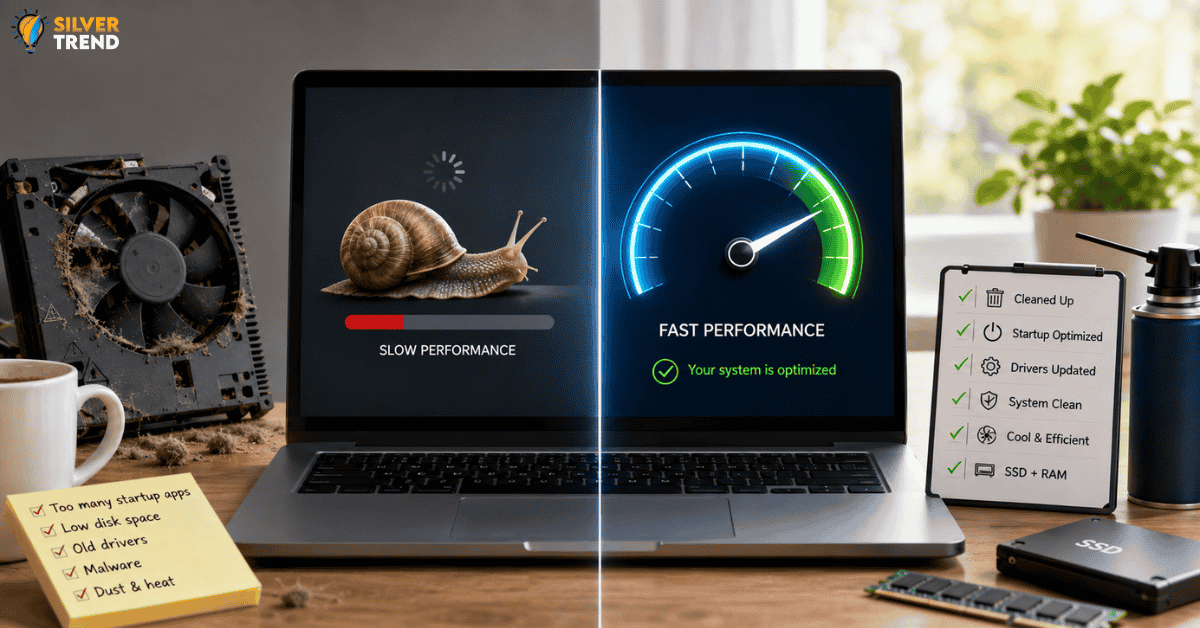
Here are the most common hidden causes:
- Too many startup programs are running in the background silently
- A nearly full hard drive that leaves no room for the system to work
- Old or broken drivers that stop your hardware from working properly
- Malware or viruses quietly eating your system resources
- Too much dust inside the computer is blocking airflow and causing heat
Heat is something many people overlook. When your computer gets too hot, it slows itself down on purpose to protect its parts. If your laptop or desktop feels warm all the time, that heat may be the real reason behind the slowness.
Start With the Easiest Fix First
Before doing anything else, restart your computer. This sounds too simple. But most people leave their computers in sleep mode for days or even weeks. A fresh restart clears the memory. It closes all the hidden processes that pile up over time.
After the restart, check how much storage space you have left. Open your file manager and look at your main drive. If it is more than 85 percent full, that alone can make your system slow. Delete old files, empty your recycle bin, and move large files to an external drive or cloud storage.

How to Fix a Slow Computer Through Settings
One of the biggest reasons people do not know how to fix a slow computer is that they focus only on apps and ignore system settings. Here is where real speed often hides.
Disable startup programs. On Windows, press Ctrl + Shift + Esc to open Task Manager. Click the Startup tab. You will likely see many apps you never open. Disable the ones you do not need. This alone can cut your boot time in half.
Adjust your power settings. Many laptops are set to “Power Saver” mode by default. This limits your processor speed to save battery. Switch to “Balanced” or “High Performance” mode and notice the difference right away.
Turn off visual effects. Windows use animations and shadows to look nice. But these effects use memory. Search for “Adjust the appearance and performance of Windows” in your settings. Choose “Adjust for best performance” to turn off all extras.
A Fix Most People Never Try
Here is something that surprises most people. Your web browser might be the main problem. Browsers like Chrome can use a huge amount of memory. Open Task Manager and see which program is using the most RAM. If your browser is near the top, try these steps:
- Disable browser extensions you do not use
- Clear your browsing cache and cookies
- Limit the number of open tabs
- Try switching to a lighter browser like Firefox or Edge
Many people blame the computer when the browser is the real culprit.
Cleaning Your Computer the Right Way
When people think about how to fix a slow computer, they usually think about software. But physical cleaning matters too. A laptop fan blocked by dust cannot cool the system. The processor then runs more slowly to avoid damage.
Use a can of compressed air to blow dust out of vents. Do this every three to six months. For desktops, carefully open the side panel and clean the fans and heat sinks. This simple step can bring a noticeable speed boost, especially on computers that are two or more years old.
Also, check your antivirus software. Run a full scan at least once a month. Some malware is designed to run quietly and is hard to notice. It uses your processor and internet in the background without showing any obvious signs.
When to Update and When to Upgrade
Keeping your operating system updated is important. Updates often include fixes that improve speed and security. But very old hardware may struggle with newer updates. If your computer has less than 4GB of RAM and you are running a modern system, adding more RAM is one of the most affordable upgrades you can make.
An SSD upgrade is another powerful change. Replacing an old spinning hard drive with a solid-state drive can make your computer feel like a completely new machine. Boot times drop from minutes to seconds.
Knowing how to fix a slow computer is really about knowing your machine. Pay attention to what it is doing. Listen for unusual fan noise. Watch for programs that take too long. Small problems are always easier to fix early. Catch them before they build up, and your computer will stay fast for years.